
WIN Learning Career Readiness System Release Updates: December 2025
Version 6.7.0 Released 12/17/2025
Summary
Version 6.7.0 of WIN Career Readiness System code was released to production on December 17, 2025. Highlights of the release include:
Resume Builder Enhancements
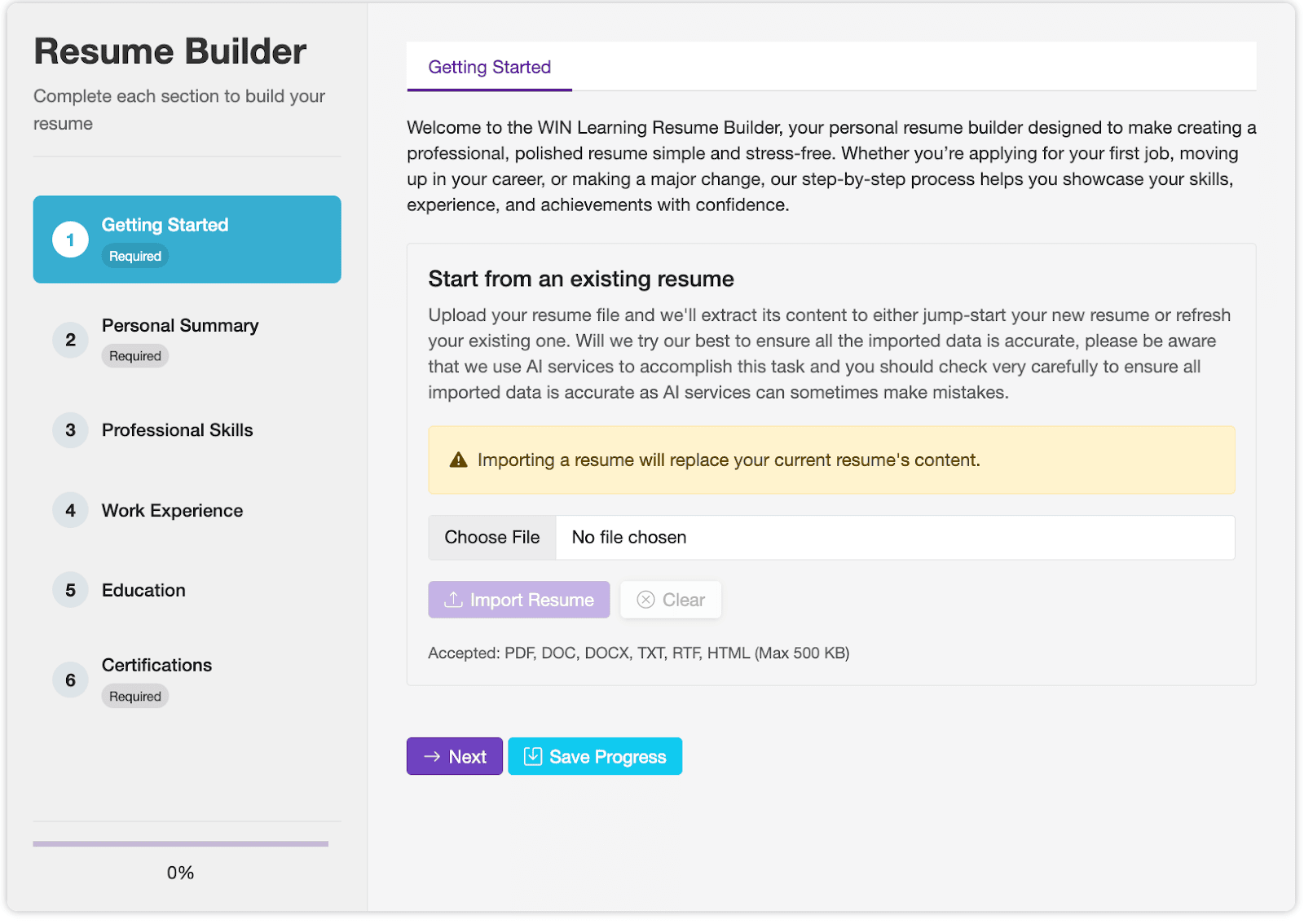
Participants can now upload an existing resume directly into Resume Builder and make edits right within the tool. Plus, with the Enhance with AI feature, you can take your resume to the next level with smart, personalized improvements.
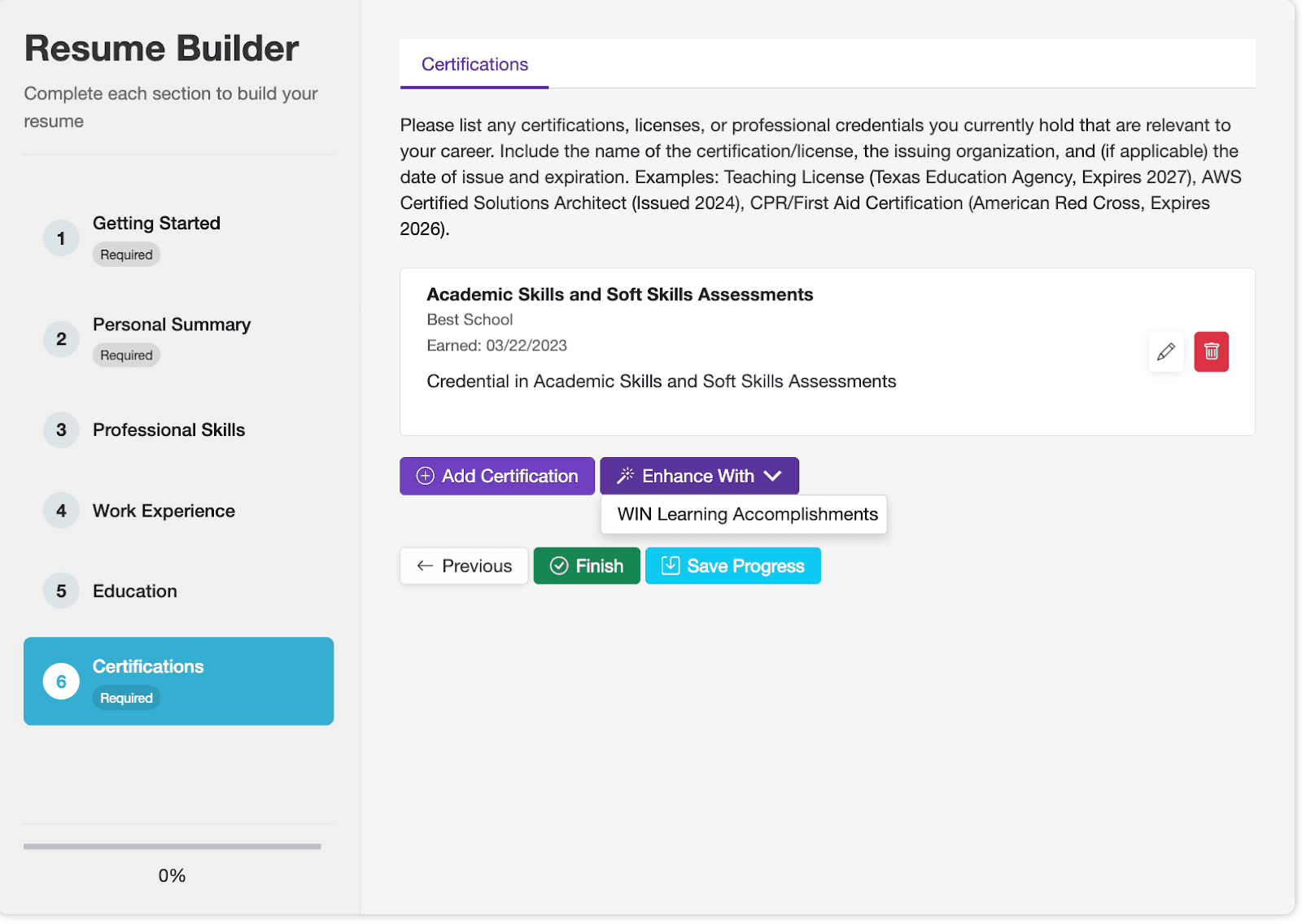
Resume Builder also now includes a dedicated Certifications section. If you’ve earned WIN certifications, simply select Enhance with WIN Learning Accomplishments, and Resume Builder will automatically import your achievements into your resume — saving you time and effort.
Assessments
WIN Academic Skills Assessment Updates
After a period of development and field testing, all Academic Skills Assessment items are more fully aligned to the latest WIN Academic Skills Learning Objectives, which were developed using the U.S. Department of Labor’s O*NET Job Zone Framework and Detailed Work Activity (DWA) Statements. These career-contextualized items connect essential Work Ready skills to real-world employment requirements across multiple job levels. This deep alignment creates a seamless connection between instruction and assessment, ensuring consistent skill development across WIN’s Academic Skills Courseware and Assessments.
Highlights of this update include:Refreshed assessment items for Work Ready Math, Work Ready Reading, and Work Ready Data
60-minute time allotment for each assessment
New objective-based reporting, providing clearer insights into skill strengths and growth opportunities
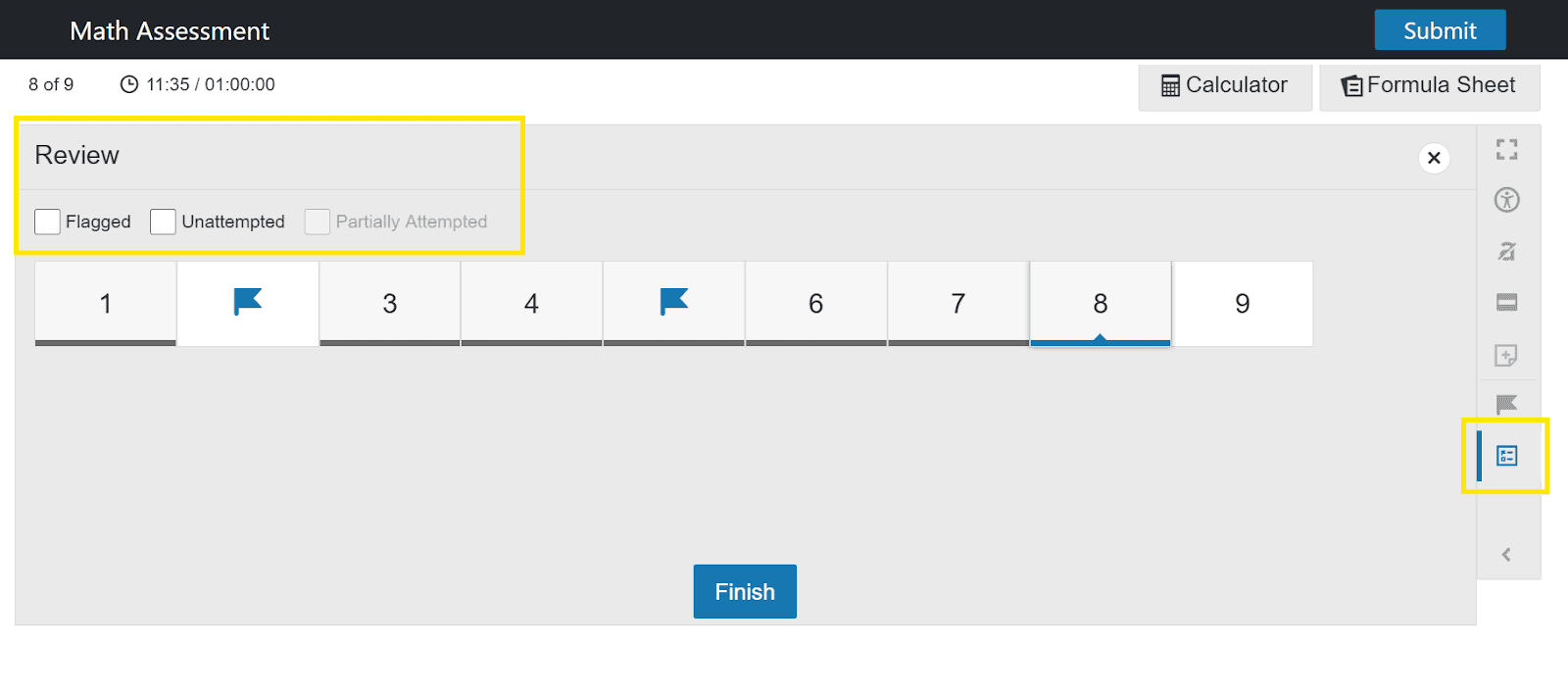
New annotation tools including sticky notes, review mode, and item flags to support test-taker focus and navigation
Fresh reading passages in Work Ready Reading
Enhanced accessibility - Work Ready Math Formula sheet is screen reader compatible and available in Spanish
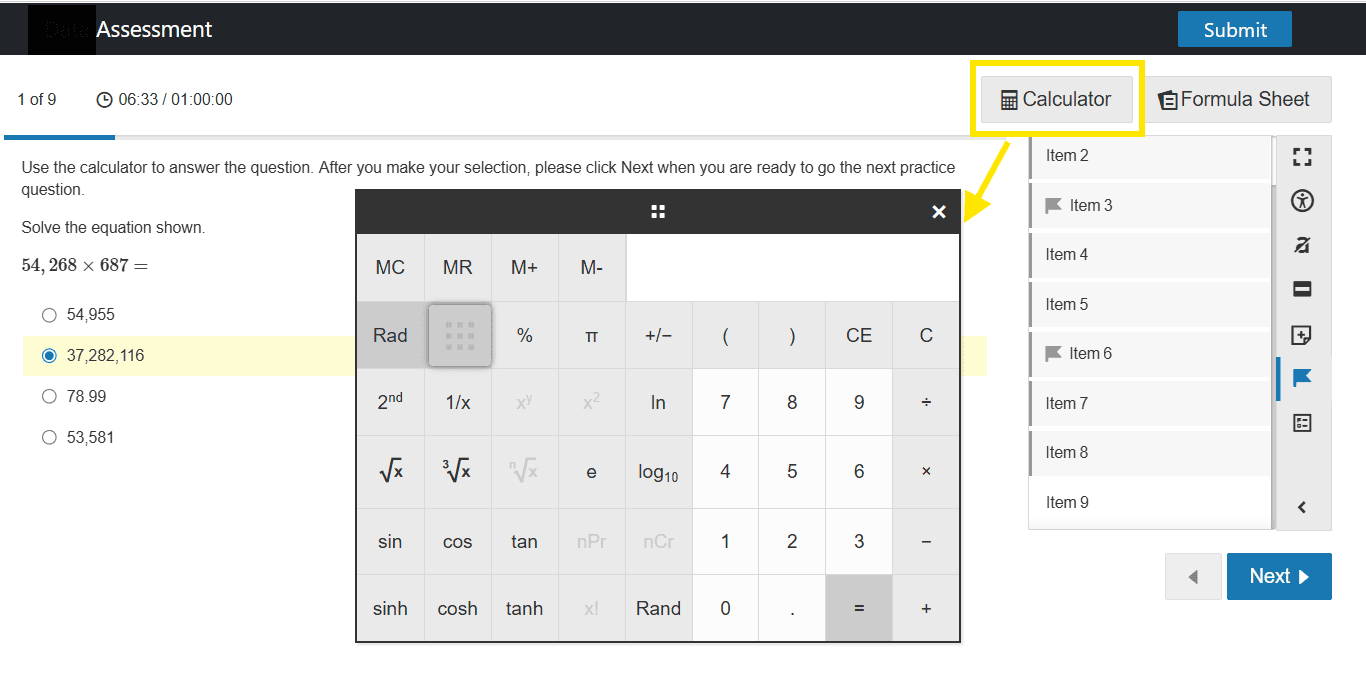
Enhanced calculator with scientific functions.
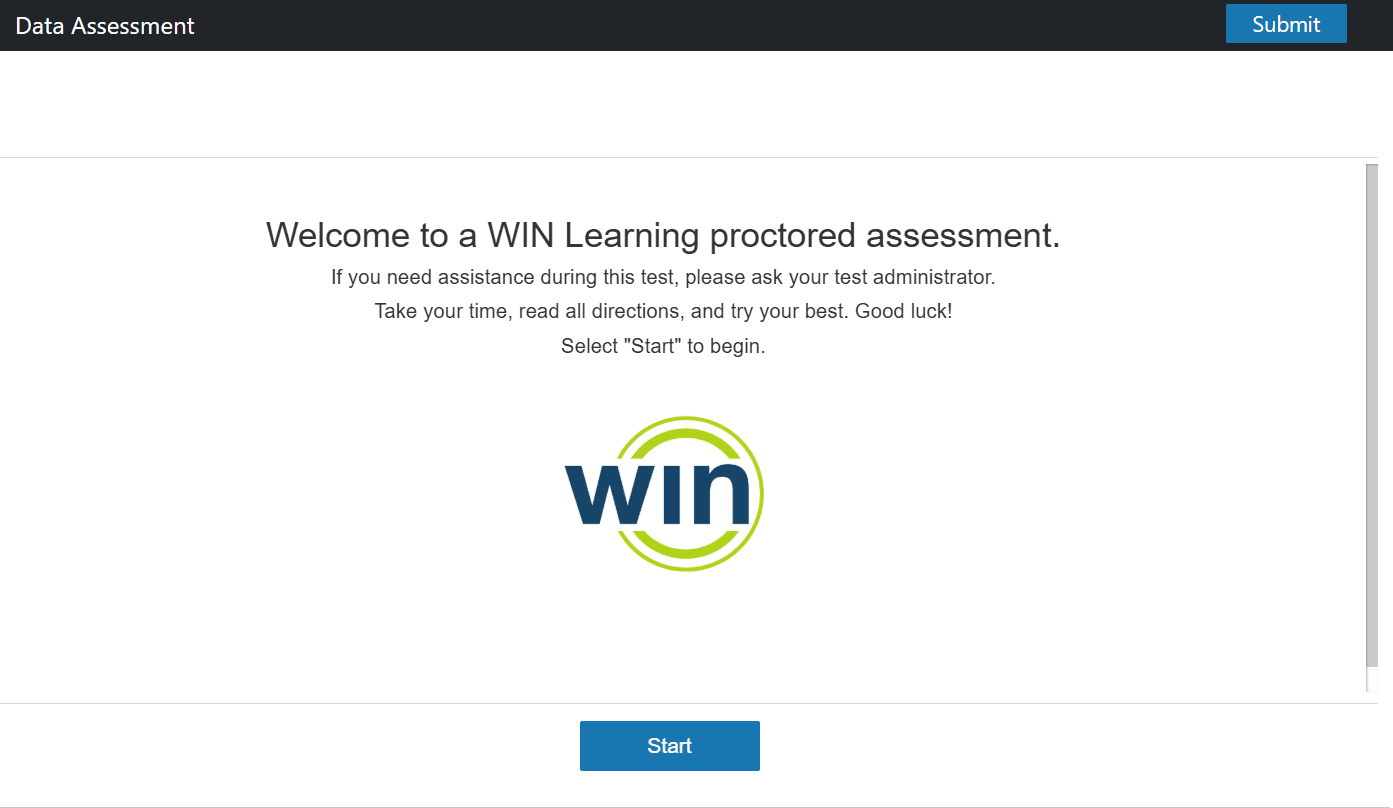
New introductory screen, “WIN Welcome”
After a period of development and field testing, all Academic Skills Assessment items are more fully aligned to the latest WIN Academic Skills Learning Objectives, which were developed using the U.S. Department of Labor’s O*NET Job Zone Framework and Detailed Work Activity (DWA) Statements. These career-contextualized items connect essential Work Ready skills to real-world employment requirements across multiple job levels. This deep alignment creates a seamless connection between instruction and assessment, ensuring consistent skill development across WIN’s Academic Skills Courseware and Assessments.
Refreshed assessment items for Work Ready Math, Work Ready Reading, and Work Ready Data
60-minute time allotment for each assessment
New objective-based reporting, providing clearer insights into skill strengths and growth opportunities
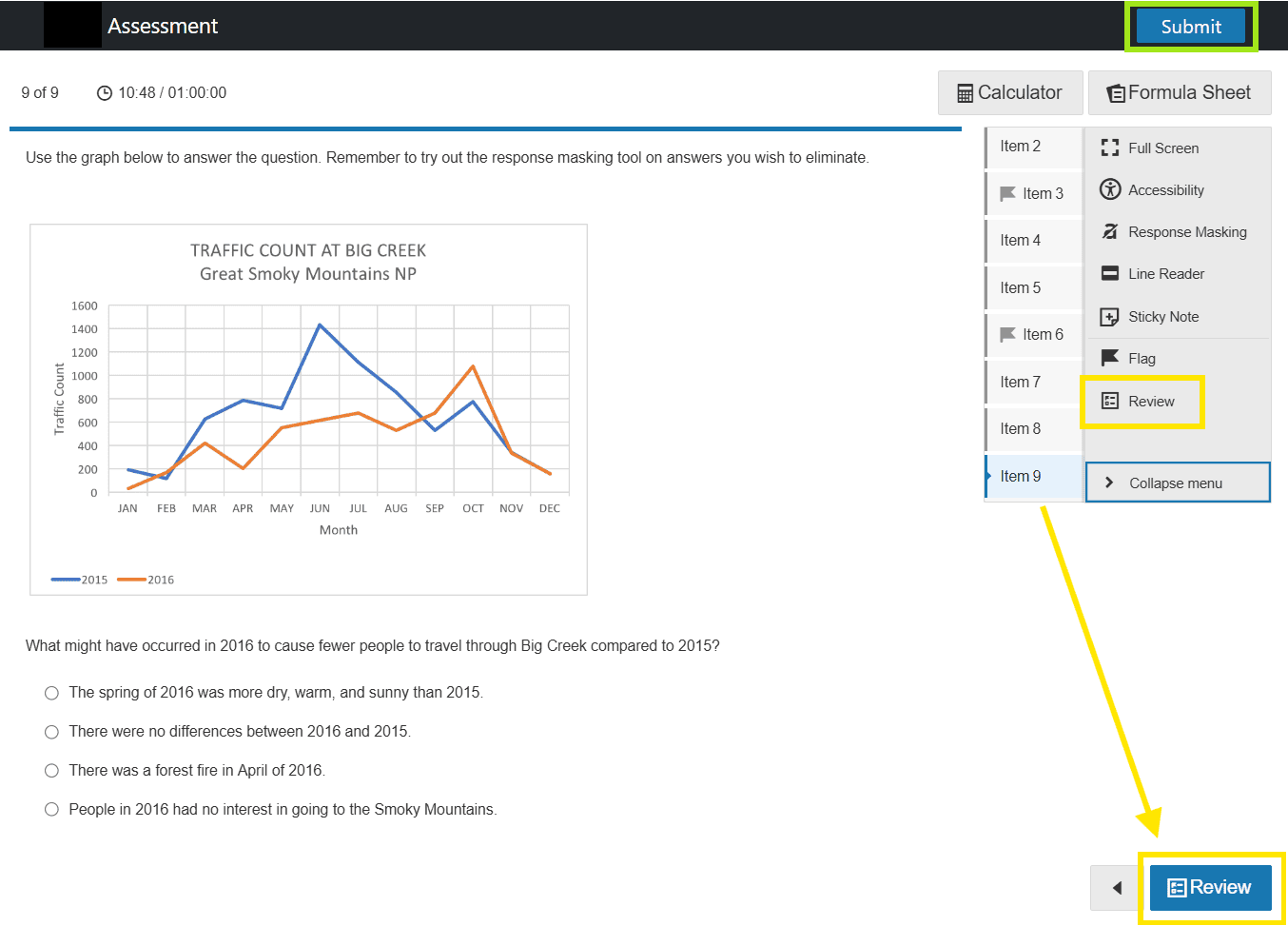
New annotation tools including sticky notes, review mode, and item flags to support test-taker focus and navigation
Fresh reading passages in Work Ready Reading
Enhanced accessibility - Work Ready Math Formula sheet is screen reader compatible and available in Spanish
Enhanced calculator with scientific functions.
New introductory screen, “WIN Welcome”
Layout Update - Item Count and Timer are now on the left.

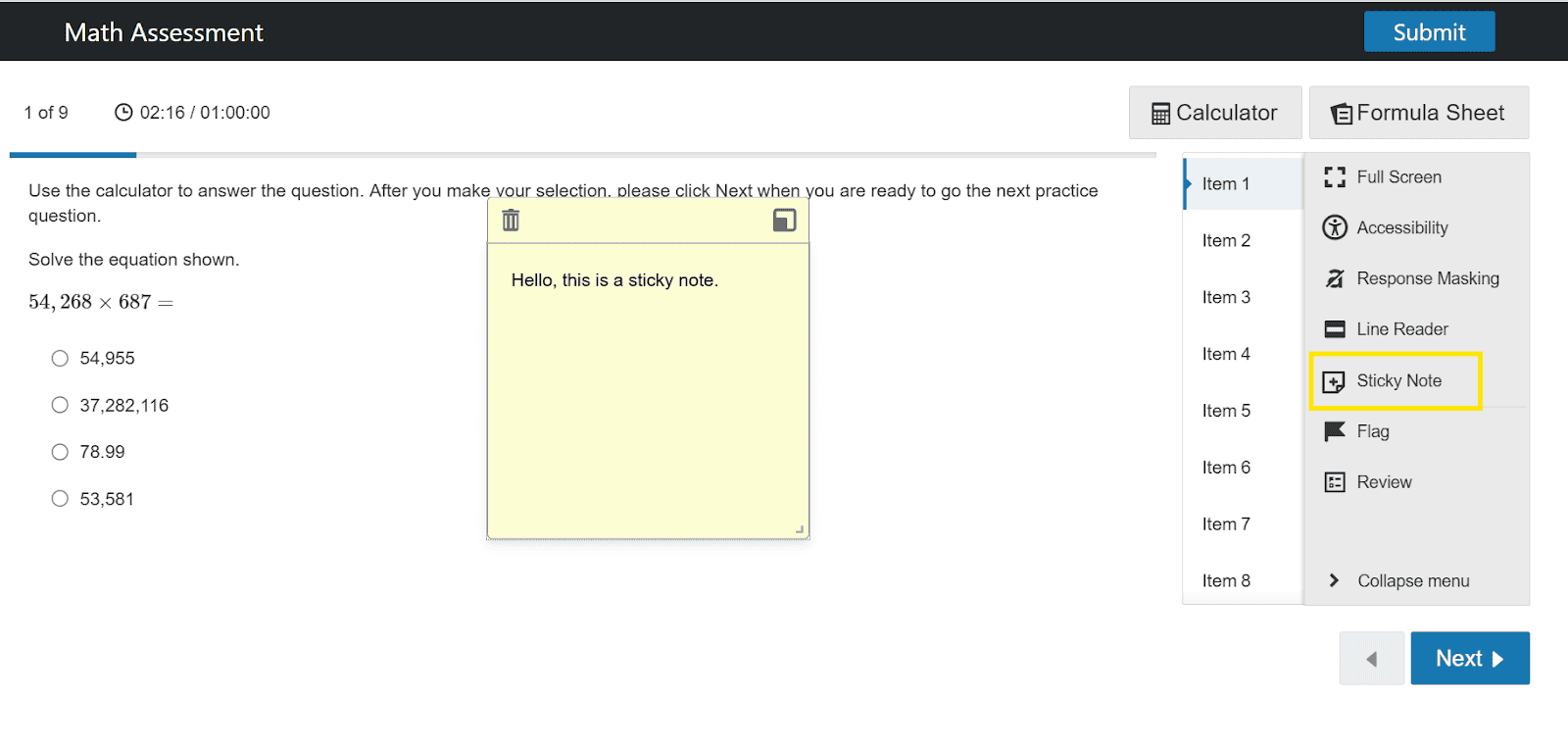
Annotations Tools - Sticky Notes
Sticky notes are only associated with a single item. They remain with the item for the duration of the test.
Annotation Tools - Flags
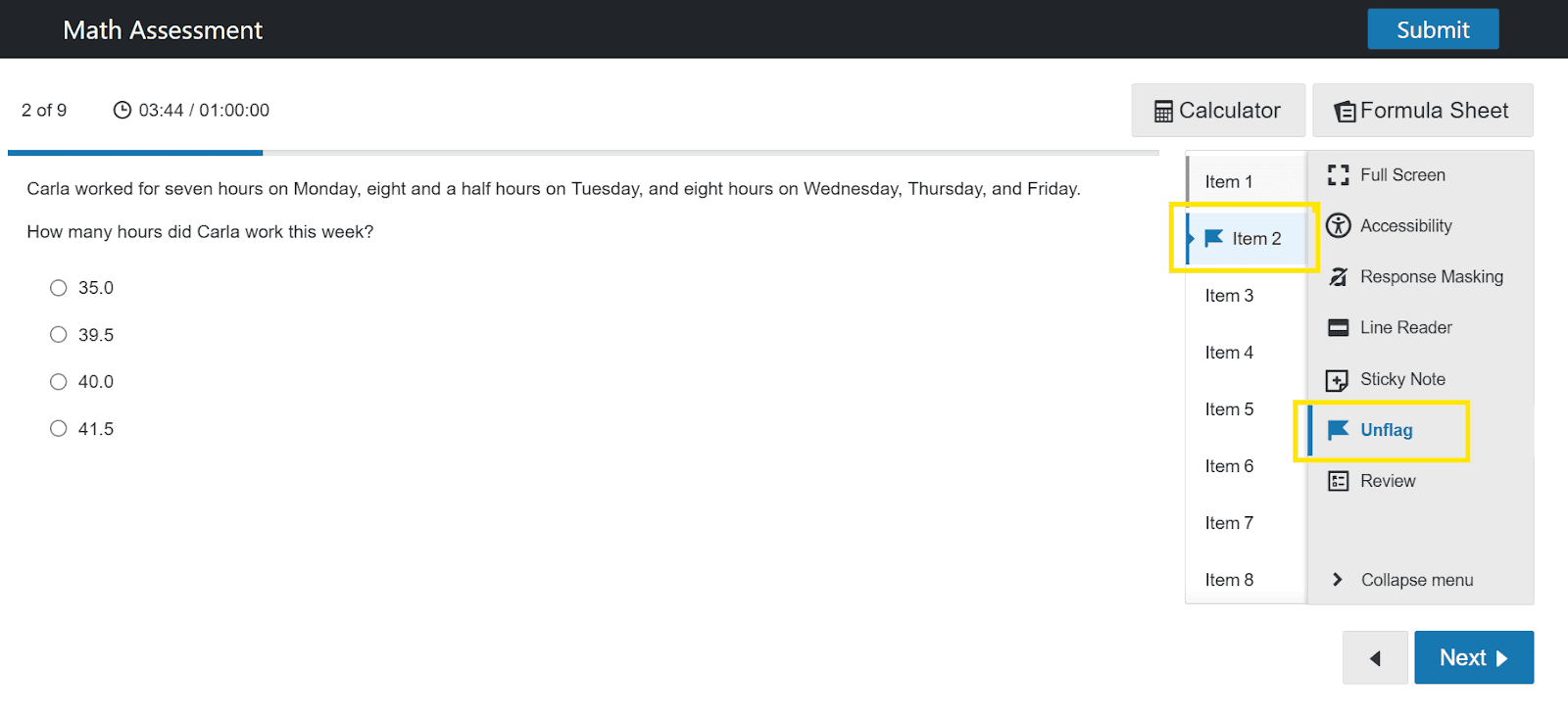
Item Flags can be seen in the Item Panel and in the Review screen.
Annotation Tools - Review Mode
Learners can click “Review” in the tools panel at any time and see their current progress (i.e. completed items, flagged items, unattempted items). In addition, when a learner answers the final item on an assessment a “Review” button appears in place of the “Next” button. Students have the option to select “Review” and double check their work before submitting, or they can skip this step and simply select “Submit” in the top right corner of the assessment. The latter still includes a warning about double checking items before submitting the assessment.
Work Ready Math - Calculator
The calculator is now located in the top right corner and includes scientific functions.
Work Ready Math - Formula Sheet
The formula sheet is now located in the top right corner. It can be read by a screen reader and is available in Spanish.

Welcome Screen
Soft Skills Assessment Updates
Soft Skills Assessment Updates
Highlights include:
Refreshed items as a result of field testing and data analysis
Revised items aligned to diversity, equity, and inclusion objectives
Updated the assessment player so that the layout and tools are the same as Academic Skills Assessment
Digital Skills Assessment Updates
Highlights include:
- Updated the assessment player so that the layout and tools are the same as Academic Skills Assessment and Soft Skills Assessment.
- Refreshed items were previously released in October 2025 including new items aligned to our artificial intelligence (AI) objectives
Security

If enabled, upon logging in the user will be prompted to validate their account with a code sent to their verified email address. If a user has not verified their email address, the system will prompt them to complete that process before the multi-factor step.
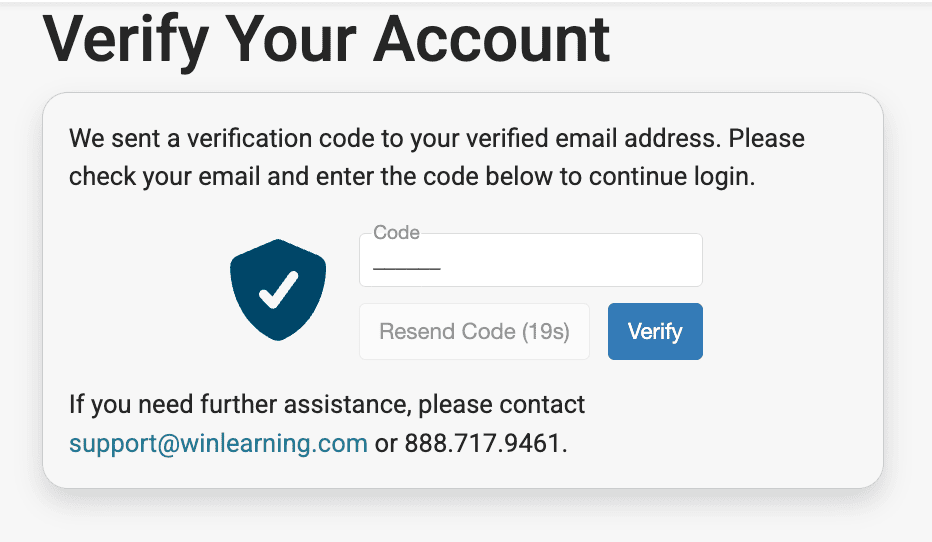
If the code sent via email is not entered within 10 minutes, the code will become invalid and the user will need to have a new verification code sent to complete MFA. This can be done from the MFA Code page. Additionally, once a code has been entered, the user’s account will be verified for 14 days. After which, the user will need to use a new MFA to login again.
User Permissions
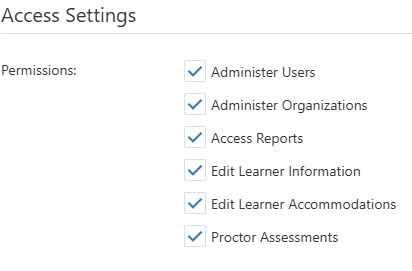
User permissions have been updated to allow for more discrete configuration.
Permission | Definition |
Grant permission to enroll staff | User has the ability to grant other users below them in the hierarchy permission to enroll staff.
|
Enroll Admins | User has the ability to enroll administrators below them in the hierarchy |
Edit Administrator Information | User has the ability to edit the user information of administrators below them in the hierarchy. |
Enroll Facilitators | User has the ability to enroll facilitators below them in the hierarchy |
Edit Facilitator Information | User has the ability to edit the user information of facilitators below them in the hierarchy. |
Change Role/Transfer | User has the ability to change the role of other staff and/or transfer other staff to another organization within their Portal Client. The user will also be able to transfer learners. The user must have access to both organizations in the transfer process (to and from). |
Activate/Deactivate User | User has the ability to deactivate staff and learner accounts of users below them in the hierarchy. User has the ability to reactivate staff and learner accounts of users below them in the hierarchy. |
Edit Learner Information | User has the ability to edit learner profile information, excluding accommodations. |
Edit Learner Accommodations | User has the ability to edit learner accommodations. |
Grant Proctor Assessments Permission | User has the ability to grant staff below them in the hierarchy permission to proctor assessments |
Proctor Assessments | User has the ability to proctor assessments. They can access the assessment assignment grid and unlock and monitor assessments for learners. |
Authorize Assessment Retakes | User has the ability to grant a learner an assessment retake within the test window. This action invalidates the previous test session and unlocks the ability for a proctor to reassign the assessment for a student. This only appears when a test window has been established. |
Administer Users | Facilitator has the ability to access User Administration which allows them to see the students in their organization. If this is on and Edit Learner Information/Edit Learner Accommodations is off, then the facilitator will be able to View the learner information and reset the learner’s password only. |
Administer Organizations | Facilitator has the ability to access Organization Administration from the header menu, which includes access to Managing Organizations and Class Management. |
Access Reports | Facilitator has the ability to access the Reports dropdown from the header menu, which provides access to all of the system reports. |
Default Admin Settings
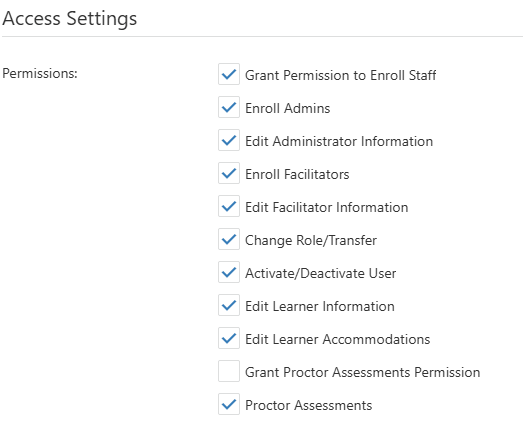
Default Facilitator Settings
Reports
Objective Based Report Updates
Improved report performance
Objective reporting for Academic Skills Assessments
Learner Credential Summary Report Update
Org Code added to the Column Chooser
Individual and Learner Listing Update
Column for alternate language has been added to the Individual and Learner Listing reports and will report if the user used Spanish for their courseware or assessments.
Improved report performance
Objective reporting for Academic Skills Assessments
Org Code added to the Column Chooser
Column for alternate language has been added to the Individual and Learner Listing reports and will report if the user used Spanish for their courseware or assessments.
Miscellaneous
Batch enroll nonlearners:
Users now have the ability to batch enroll nonlearners. Batch files for nonlearners must be a single file for each nonlearner role you wish to import (ie; a file for Teachers, a file for School Administrators, et cetera). Select the role you want to import the nonlearners into from the “Import As” dropdown from the Import File page.
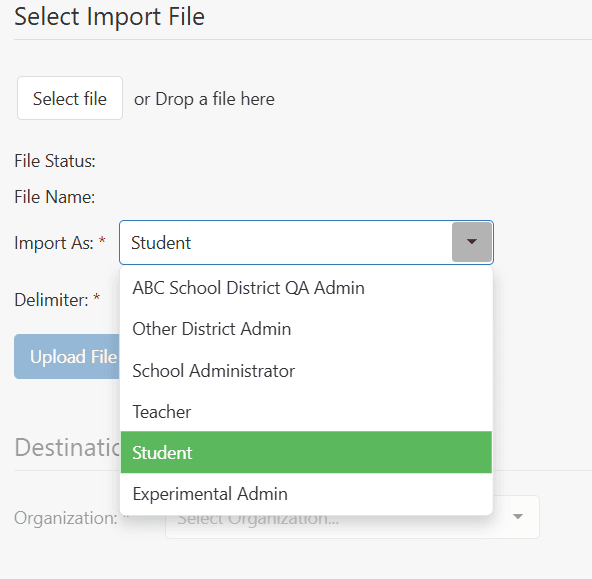
Additionally, transfers will not be available for nonlearners during the batch enrollment process. If a user added in batch enroll has the same UserName as another nonlearner an error will appear in the Import Results table. The Importer will need to either create a new UserName for the duplicate user, or the Importer will need to investigate in User Admin if the nonlearner in the batch enroll has already been enrolled previously and should be transferred from within User Admin.
- Fixed an issue where custom field columns for the Learner Credential Summary were not displaying data
- Fixed an issue where some users were being enrolled in multiple organizations after signing in via SSO
- Fixed an issue where language selector was not appearing in the Assessment Assignment grid when alternate language was enabled
- Fixed an issue where ASL Tutorials weren’t appearing for Students with ASL accommodations
- Fixed an issue where assessment sessions could not be deleted for users with Time Extensions
- Fixed an issue where some lesson titles were mismatched in various locations
- Centered the Responsive Content Graphic shown before courseware on Tablet devices
- Fixed an issue where the Assigned By dropdown in Grant Retake wasn’t showing a list of nonlearners
- Fixed an issue where passwords were being revealed in the Class Management grid
- Changed the checkboxes to bullets in the My Work Ready Career Plan Next Steps section
- Fixed an issue where the stats on the Non-Learner Dashboard in My Work Ready wasn’t displaying correctly
- Fixed an issue where links in a Learner Assignment description leads to an error page
Known Issues
Chromebook Lockdown Browser issue:
Precondition: User is taking an assessment with Chromebook Lockdown Browser Extension
In Chromebook, when exiting an assessment (by clicking the x or clicking submit), the user is sometimes directed to the LDB Test page rather than the assessment landing page. To proceed, the user has to re-enter the WINCRS URL and login again.
The assessment successfully submits when clicking the submit button, and scores do come back.
For more information or support, contact Support at WIN Learning
To report issues or ask questions about this release, please contact the WIN Learning Help Desk:
Email: support@winlearning.com
Phone: 888-717-9461 Option 3
All internal and external support requests are logged and tracked and get routed to the appropriate parties.
Please remember to include a detailed description of the issue, who it impacts, system/environment info, and reproduction steps and an actual due date. If helpful, please include a screenshot.
